Claude can already read your code and run your test suite. On a Mac with Xcode installed, it can also see and drive a running iOS Simulator directly — take a real screenshot, read the actual accessibility tree, tap a specific button, type into a field, and install and launch a build it just compiled. Not a description of what the UI probably looks like. The real pixels.
This is a walkthrough of setting that up and using it for two different jobs: verifying a native iOS app as you build it, and — less obviously — using the same Simulator as a real mobile Safari for testing a responsive web app. Everything below was checked on this Mac: Xcode 27.0, iOS 27.0 runtime, an iPhone 18 Pro Max simulator. The screenshots are genuine output from that machine, not mockups.
What we're building
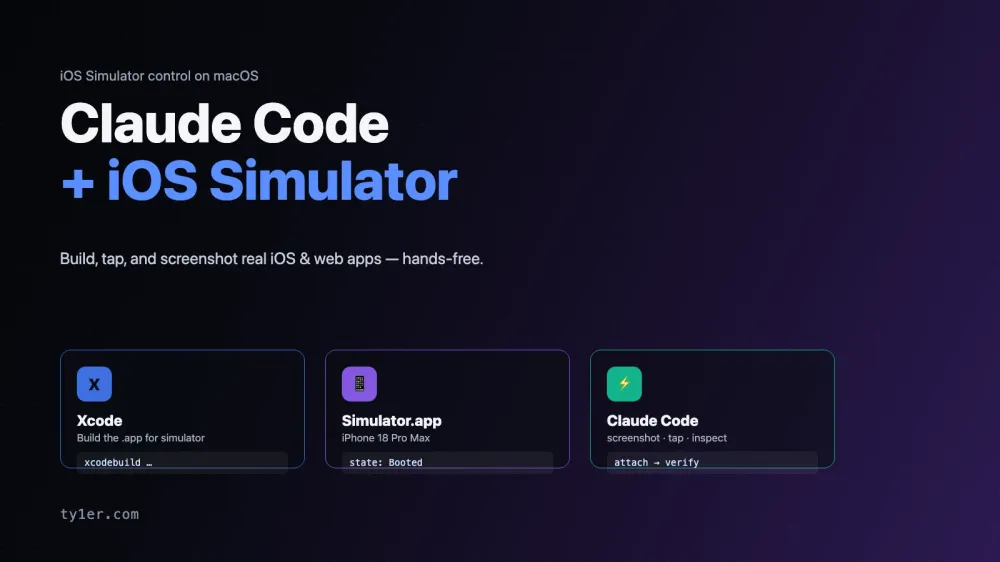
Three pieces, and the interesting part is the loop between the last two.
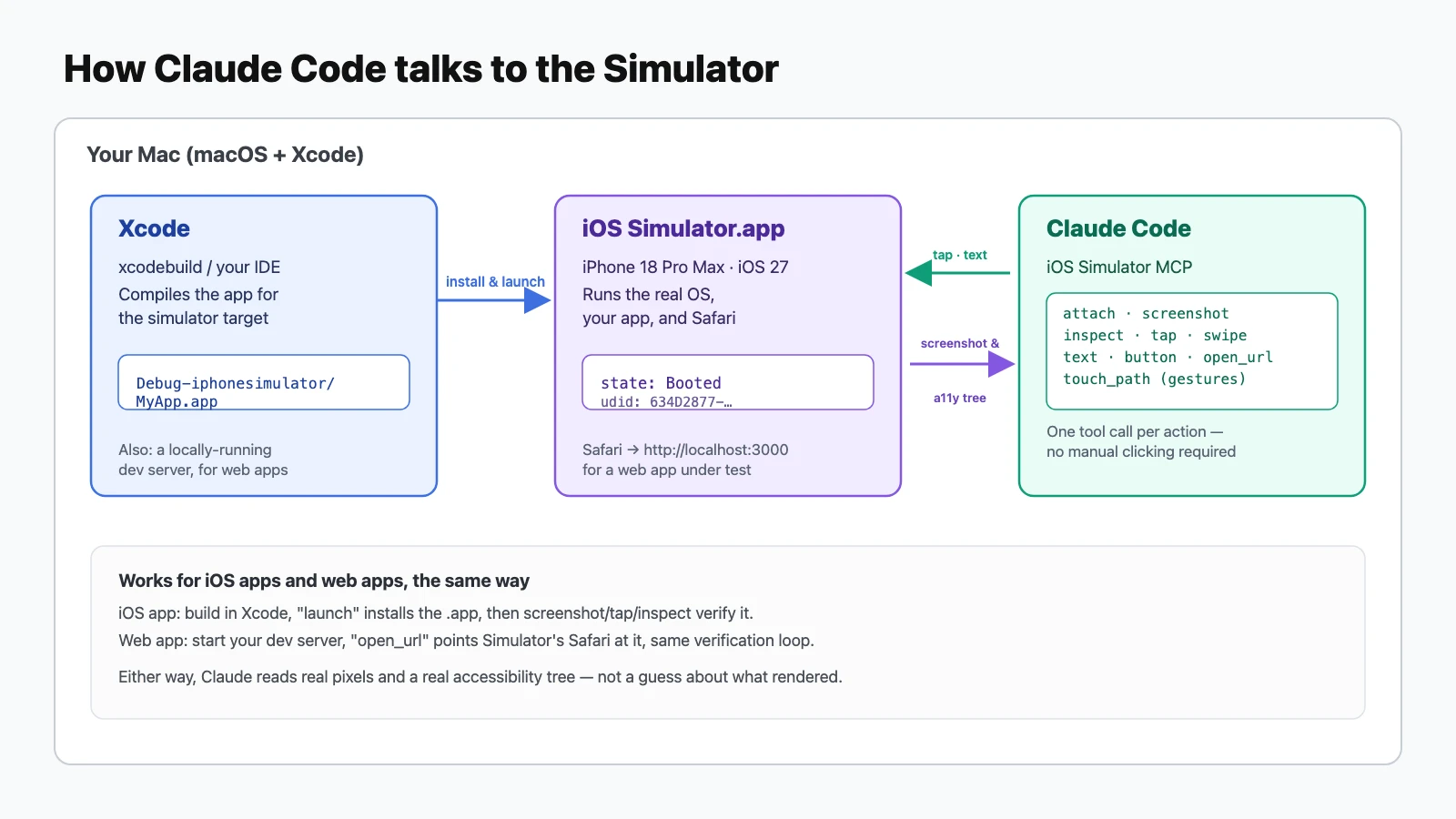
- Xcode builds the app. Either you build it yourself and hand Claude the path, or Claude runs a headless
xcodebuildthrough a companion build tool and polls it for progress. - Simulator.app runs it. This is a full iOS OS image, not an approximation — your app runs exactly as it would on that iPhone model, down to real WebKit in Safari.
- Claude drives and verifies through one tool, one action per call: attach, screenshot, inspect, tap, swipe, type, press a hardware button, open a URL. No mouse, no manual clicking through Xcode's own UI.
Requirements
- The full Xcode app, not just the Command Line Tools — Simulator.app ships inside it. Install from the App Store or developer.apple.com, then confirm
xcode-selectpoints at it, not a bare CLT install. - At least one simulator runtime downloaded — Xcode > Settings > Platforms, if the device list below comes up empty.
- The Claude desktop app on macOS, in a Code session. The first time you use a given simulator, you'll get a one-time permission prompt.
Step 1: Confirm Xcode and a simulator are ready
Two commands, run once, before you ever say a word to Claude about it:
xcodebuild -version
# Xcode 27.0
# Build version 27A266a

xcode-select -p
# /Applications/Xcode.app/Contents/Developer   ← must point inside Xcode.app, not just CommandLineTools

xcrun simctl list devices available
# == Devices ==
# -- iOS 27.0 --
#     iPhone 18 Pro Max (EEFF55ED-4056-41FE-85F2-01759527BFC2) (Shutdown)
#     iPhone 17 (6B74816B-3C6F-455B-9893-36D8EC3A5238) (Shutdown)
#     …
If xcode-select -p prints a CommandLineTools path instead of one inside Xcode.app, fix it before doing anything else — it's the single most common reason a build or a simulator boot fails for a reason that looks unrelated:
sudo xcode-select --switch /Applications/Xcode.app/Contents/DeveloperNo simulator needs to be booted yet. Claude can boot one itself the first time it needs to.
Step 2: Just ask
There's no slash command or flag to remember. Say what you want in plain language — "run my app," "show me what the simulator looks like," "does this screen look right?" — and Claude reaches for the Simulator tools on its own. The first call is usually attach, which opens a live panel so you can watch along, then screenshot for its own verification, which works whether or not that panel is open.
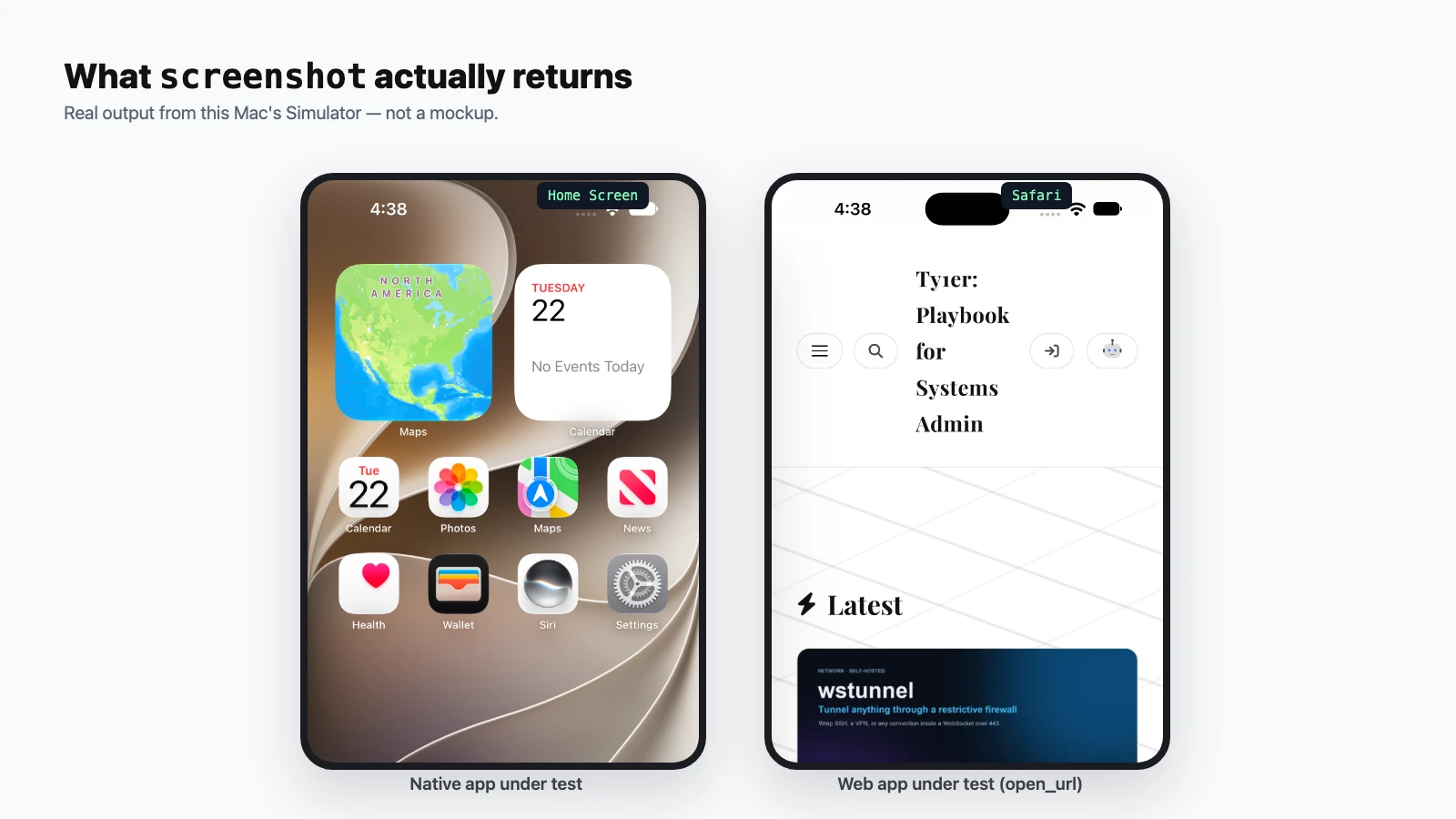
screenshot call — one on the Home Screen, one with Safari open. Nothing distinguishes a native app from a web page to the tool.A screenshot alone tells Claude what a screen looks like. For anything it needs to interact with — "tap the button," "is the switch on?", "what does this field say?" — it reaches for inspect first, which returns the accessibility tree: the same structured view a screen reader gets, with each element's type, label, value, and exact frame. That's genuinely more reliable than eyeballing coordinates from a picture, though it isn't infallible — web content inside Safari doesn't always expose one, and when it doesn't, the tool says so plainly and falls back to reading the screenshot instead of guessing.
Step 3: Building and launching your own app
If you already have a way to build your project, Claude will use it — a Makefile, a script, another MCP server you've configured. Failing that, there's a headless build tool built for exactly this: point it at your .xcodeproj or .xcworkspace and a scheme, and it runs xcodebuild in the background, returning a build id immediately instead of blocking the conversation.
# conceptually, what Claude does under the hood:
xcodebuild -workspace MyApp.xcworkspace -scheme MyApp \
  -destination 'platform=iOS Simulator,name=iPhone 18 Pro Max' \
  -configuration Debug build
One detail worth knowing before you approve that first build: a headless build skips Xcode's usual Swift-macro trust prompt, which means approving the build also silently trusts the Swift-package macros in your project's dependencies. Fine for your own project and packages you already trust; worth pausing on for a freshly-cloned repo with dependencies you haven't looked at.
Once the build finishes, Claude installs and runs it with a single launch call against the built .app path, then immediately screenshots the result — so a build error and a real launch failure never get confused with each other.
Driving the UI: tap, swipe, type, and the occlusion problem
Once a target is confirmed via inspect — either the whole visible tree, or narrowed to one element by a label substring or an exact point — Claude taps the center of its frame. Text fields get text, hardware buttons (home, lock, side button, Siri) get their own dedicated action, and anything more elaborate — a long-press-then-drag, a pinch, a rotate — goes through touch_path or its two-finger sibling touch2_path, which replay an eased curve of coordinates rather than a single point.
The one sharp edge worth knowing about up front: a frame read from the whole-tree or marker inspect can be covered by something drawn on top of it later — a tab bar, a sheet, a modal — and the read has no way to know that on its own. Reading by an exact x/y point instead resolves this correctly, because it returns whatever's actually drawn on top at that point, the same way a real tap would land. When in doubt before a tap that matters, that's the safer read.
Testing a web app the same way
This is the part that's easy to miss: none of the above is specific to native apps. Point open_url at a local dev server, and Simulator's own Safari opens it — real WebKit, a real mobile viewport, real touch events, not a resized desktop browser window pretending to be a phone.
# with your dev server already running on :3000
# Claude calls open_url with http://localhost:3000
# then screenshot / inspect / tap exactly as it would for a native app
For this site, that means Claude can pull up ty1er.com in an actual mobile Safari and check that the header, the theme toggle, or the On This Page sidebar hold up on a real device viewport — not a Chrome DevTools approximation of one — before anything ships.
What it can't do
- Simulator only. This doesn't reach a physical iPhone or iPad on your desk — it's specific to what runs in Simulator.app on this Mac. Testing on a real device still means your own normal build-and-deploy tooling.
- It won't type anything sensitive. Passwords, API keys, or other data from the conversation don't get typed into the app unless you explicitly ask for that, and screen content is treated as data to read, not instructions to follow — a screen showing a link or a prompt doesn't get acted on by itself.
- It's not a load-testing or CI device farm. One tool call drives one simulator at a time, at the pace of a real human tester, not a script running a thousand taps a second.
The verdict
The useful shift here isn't "AI writes iOS code" — it's that Claude can now close the loop on its own: change the code, build it, launch it, and look at the actual result, the same way you would, instead of describing what it expects to have happened. That matters more for UI work than almost anywhere else in software, where "the code compiles" and "the screen looks right" have never been the same claim. And because the same loop works against Safari in the Simulator, it's one setup that covers both an iOS app and the mobile view of a web app — no separate tooling for the second one.
For everything else Claude Code can do on macOS, see the Claude Code cheatsheet.