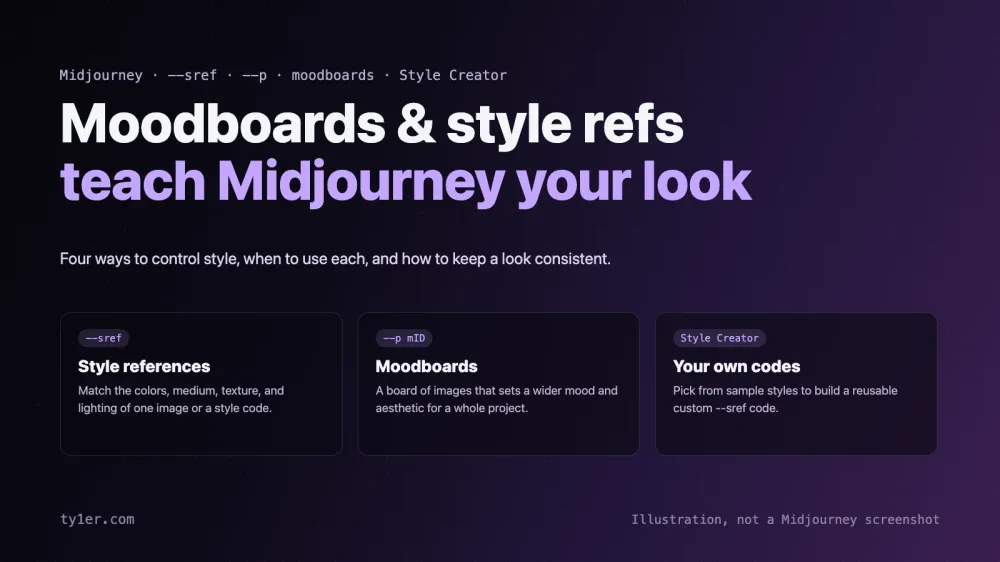
The hardest part of using Midjourney for real creative work isn't getting a beautiful image. It's getting the same kind of beautiful image again and again: across a series, a client project, or a whole brand. That's what Midjourney's style tools are for. Style references match the look of a specific image, moodboards capture a wider aesthetic from a collection, Personalization learns your own taste, and the Style Creator helps you invent new style codes.
This guide explains each one, when to use which, how to control their strength, and what changed in 2026. Everything comes from Midjourney's Style Reference, Moodboards, Personalization, and Style Creator documentation and its updates page, checked on October 11, 2026.
Style references (--sref)
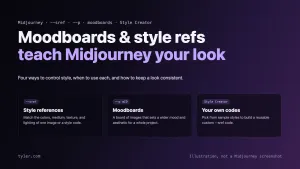
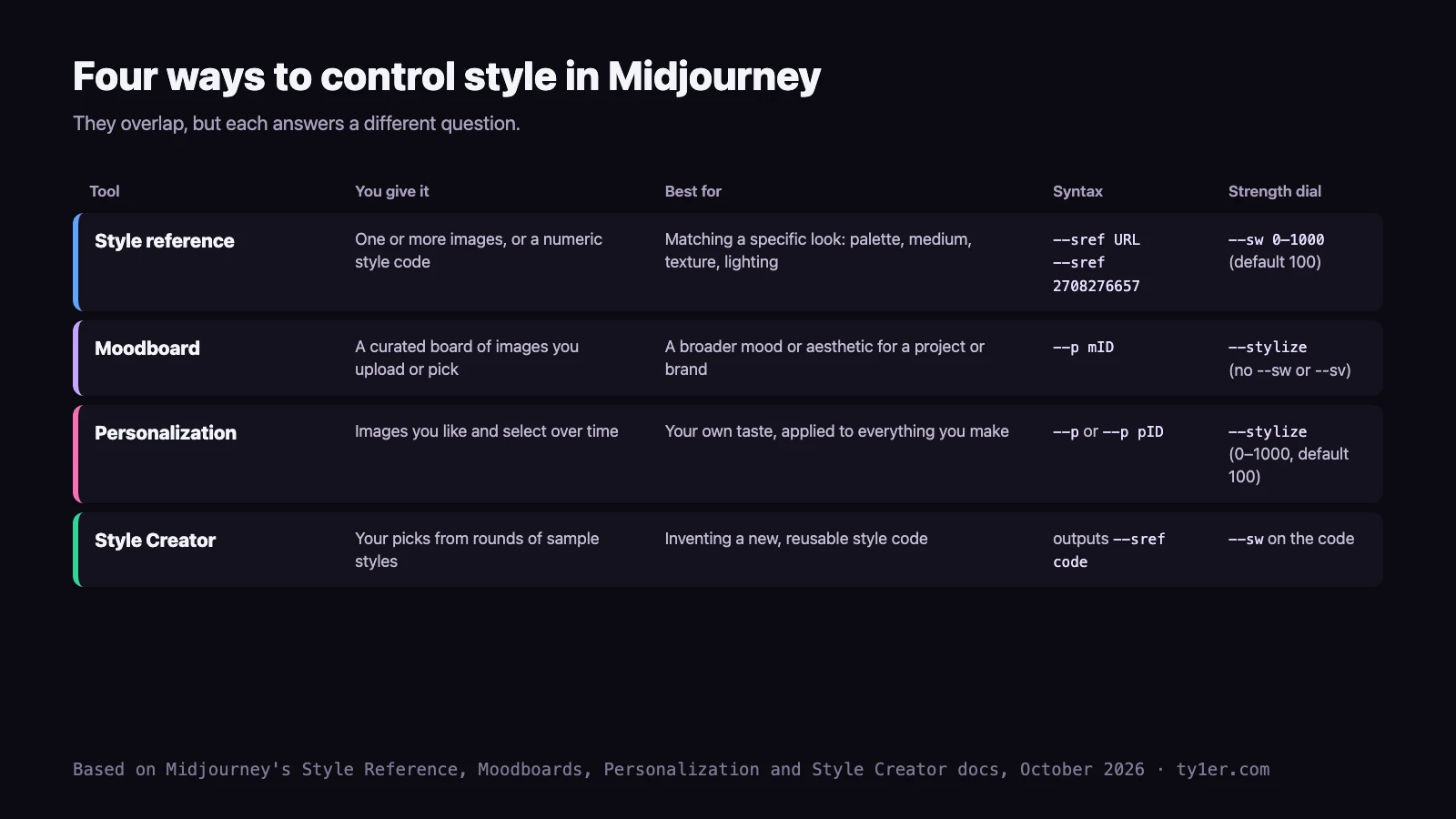
A style reference captures the visual vibe of an existing image (colors, medium, textures, lighting) and applies it to your new image. In Midjourney's words, it “doesn't copy objects or people, just the overall style.” Style references work in version 6 and later.
On the web: click the image icon in the prompt bar, then drag an image into the Style Reference section. You can use several images, and the lock icon keeps them pinned for future prompts. In Discord: add --sref followed by one or more image URLs, separated by spaces.
detailed portrait of a red fox --sref https://example.com/watercolor.pngMidjourney's best practices are worth following closely:
- Keep the text prompt simple, and avoid style words that fight the reference's look.
- Add style words only when needed, matching the reference, if the style isn't coming through.
- Describe content, not instructions. “ballpoint pen sketch of a bunny” works; “copy this style and make a bunny” doesn't.
You always need a text prompt alongside a style reference. Image files should be PNG, GIF, WebP, JPG, or JPEG.
Style weight (--sw)
--sw sets how strongly the reference affects the result, from 0 to 1000 (default 100). In V7, Midjourney notes that style weight has more impact with style codes than with images. In Discord you can also weight individual references: --sref URL1::2 URL2::1 gives the first image twice the influence.
cozy reading nook --sref https://example.com/ref.png --sw 300Style codes and --sref random
Instead of an image, you can use a numeric style code from Midjourney's internal style library: --sref 2708276657. Each code produces a distinctive look. Add --sref random and Midjourney picks a random code for you; after you submit, “random” turns into the actual code, so you can reuse a style you like. Rerunning or making variations keeps the same code. You can mix several codes, combine codes with images, and adjust any of them with --sw. You can't turn an uploaded image into a code, though.
A great discovery trick: in V8.1/V8.2 Draft mode, --sref random gives each of the 24 draft images a different style.
lighthouse in a storm --draft --sref randomStyle reference versions (--sv)
The style system has been rebuilt over time, and --sv picks which version to use. In V7 and later there are six versions; --sv 6 is the default and --sv 4 is the old V7 model from before June 16, 2025. Style codes and --sref random only work with --sv 4 and --sv 6. If an older code doesn't look the way you remember, try --sv 4.
Finding styles: the Style Explorer
You don't have to guess codes. On the Explore page, open the Styles tab to browse random or popular codes, or search for words like “photographic” or “anime”. Click a style to see example images, then use Try Style to rerun your latest prompt with it, Copy to add its code to the prompt bar, or find similar styles. Like a style to save it under your Likes tab; liking styles doesn't affect your Personalization profiles. The library has grown fast: by October 2025, Midjourney said it had nearly 200 times as many styles as at launch.
Moodboards
A moodboard is a set of images you choose to define a style. Midjourney describes moodboards as covering “a wider aesthetic range” than style references, which are more specific. Moodboards work in version 6 and later and have had their own page in the main menu since August 2025.
- Create one. Open the Moodboards page and click New Moodboard. Name it and add images by uploading files, pasting image URLs, or picking from your Midjourney gallery. On the alpha site you can also drag files straight onto a moodboard page.
- Use it. Click the moodboard's use icon to add
--p mIDto your prompt. Or turn on Personalization next to the prompt bar and select your moodboard as a default, so it applies to every prompt. - Tune it.
--stylize(0–1000, default 100) controls how much of the moodboard is applied. Lower values limit the style; higher values strengthen it.
a harbor town at dusk --p mID --stylize 250Moodboard codes are versioned. Every time you add or remove images, the moodboard generates a new code. When you submit a prompt, --p mID turns into a specific code, so old prompts keep their exact look even after the board changes. Copy the moodboard ID to always get the latest version. Even deleted moodboards' codes keep working.
What goes into the board matters. Midjourney's advice: highly varied moodboards give highly diverse images, and narrow moodboards give focused images. For a consistent series, keep your board tight: similar palette, medium, and lighting.
Moodboards don't work with --sv or --sw; use --stylize instead.
Personalization profiles
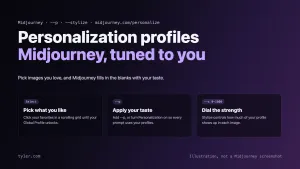
Personalization is the “your own taste” version of the same idea. Instead of picking images for one project, you select images you like over time, and Midjourney learns your preferences. Since February 2026 you build profiles by clicking images in a scrolling grid at midjourney.com/personalize, instead of choosing between two images at a time.
- Unlock your Global Profile first. Pick favorites until the progress bar completes. Liking community images on Explore also shapes it.
- Add
--pto apply your default profiles, or--p pIDfor a specific one. Like moodboards, profiles are versioned with codes, and--stylizecontrols their strength. - V8 note: your Global V7 Profile works in V8.1 and V8.2, and you can create additional V8 profiles. There's no Global V8 profile yet, and V8 profiles don't work in V7. V8.2 understands your taste much better, especially for profiles with lots of selections.
Inventing styles: the Style Creator
The Style Creator, exclusive to midjourney.com, builds a brand-new --sref code from your choices. Enter a prompt, then scroll and click the sample styles you like. It learns from both what you pick and what you skip. Every so often it re-renders your prompt with the code so far, and each refresh is one refinement round.
- Rounds: early rounds can look random. Most styles stabilize after 5–10 rounds, rounds 10–15 add detail, and changes after round 15 are small.
- Cost: preview images use your GPU time. Add
--draftto your prompt to make previews faster and cheaper. - Prompt: it only drives the previews. Use a simple one to see the style clearly.
- Finishing: click End Session when you're happy; sessions can't be reopened. Each preview set and its style code is saved on your Create page.
- Stacking: if you start from a prompt that already has a style code, the new code is added alongside it rather than merged. Use both codes together to match what you saw.
The Style Creator generates its previews with V7.
Which one should you use?
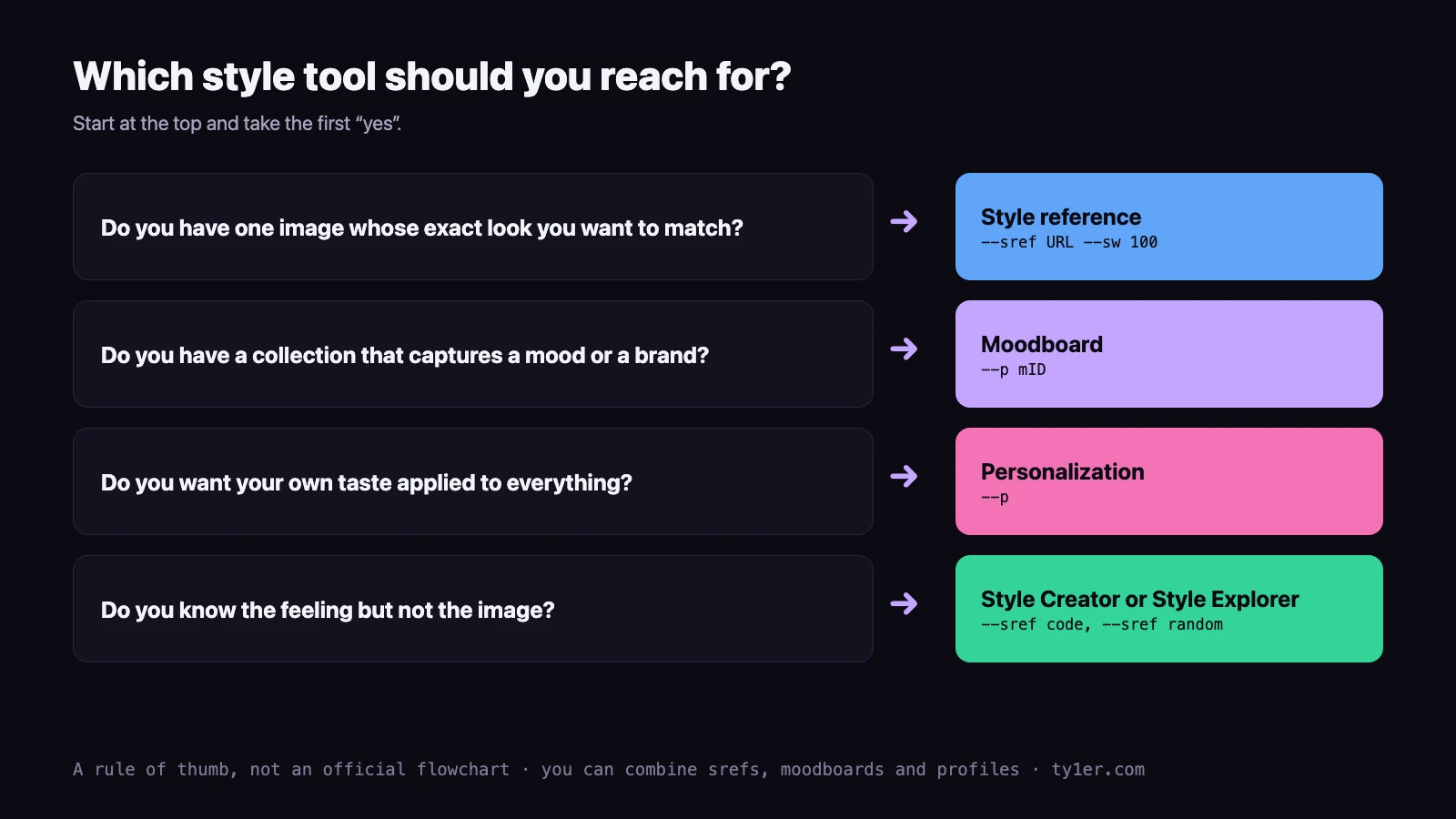
These tools stack. A common pattern is a moodboard or profile for the overall mood, plus a style reference for a specific detail like the line work or palette:
botanical poster of a fern --p mID --sref https://example.com/linocut.png --sw 150When results get muddy, remove one layer at a time to see which one is pulling the image off course.
What's new in 2026
- Steadier styles in V8.1 (April 14). Midjourney said moodboards and style references became “super stable” in V8.1, and an April 30 update sharpened them further.
- Style tools in the Edit model (August 27). The V8 Edit model works with Personalization, moodboards, and style references for retexturing, for example
hand drawn pencil sketch of this image --sref 2708276657. Midjourney recommends also describing the style in words to help it “activate”. - Live style previews (September 23–24, alpha). In the Styles sidebar, “Live previews” shows your current prompt across liked and featured styles before you spend a full job. They also work with profiles and custom styles. Styles have their own detail pages, and the sidebar has Profiles and Featured tabs.
- Mixed srefs as one pill (October 1, alpha). Several style references in a prompt now show as a single style pill with thumbnails; hover to see the codes. Midjourney is also adding sample grids for more srefs every week.
- Easier moodboard uploads (October 7, alpha). Large uploads now go a few images at a time with a progress bar, so adding lots of references no longer stalls.
Tips for artists
- Build one moodboard per project. A tight, curated board is the fastest way to keep a series or brand consistent. Rename boards clearly so clients and collaborators know which is which.
- Save the codes that work. Moodboard and profile codes are frozen snapshots, so record the exact code with your finished pieces. You can always recreate that look, even after the board changes.
- Use your own artwork as references. Upload your paintings or sketches as style references or a moodboard to push Midjourney toward your hand, not someone else's. Only upload images you have the rights to use.
- Explore with drafts, commit with HD. Use
--draft --sref randomor the Style Creator with--draftto find a look cheaply, then render finals with--hd. - Dial strength gradually. Try
--swor--stylizeat 50, 100, 250, and 500 with a permutation like--s {50, 250, 500}to see the range in one go. Permutations don't work in Draft mode.
Quick reference
| Parameter | Values | Use it for |
|---|---|---|
--sref | Image URLs, style codes, or random | Matching a specific look |
--sw | 0–1000 (default 100) | Style reference strength (not moodboards) |
--sv | 1–6 in V7+ (default 6) | Style reference algorithm version |
--p | Blank, pID, mID, or a code | Personalization profiles and moodboards |
--stylize, --s | 0–1000 (default 100) | Strength of profiles and moodboards |
For step-by-step setup guides, see the Moodboards, Personalize, and Style Creator tabs in our Midjourney cheatsheet. More Midjourney guides: Midjourney's 2026 updates for artists and Midjourney video features.